User Socket Messaging
Quickstart
Make sure that the option “User Socket Messaging” is installed on your controller. You can check installed options under MENU → STATUS → Version ID. Under MENU → SETUP → Host Comm → TCP/IP, enter a valid, static IP address and subnet mask that matches your external PC or PLC’s network segment. Under Host Comm, press SHOW then select "Clients" and "C1:". After pressing DETAIL, the following dialog is shown:
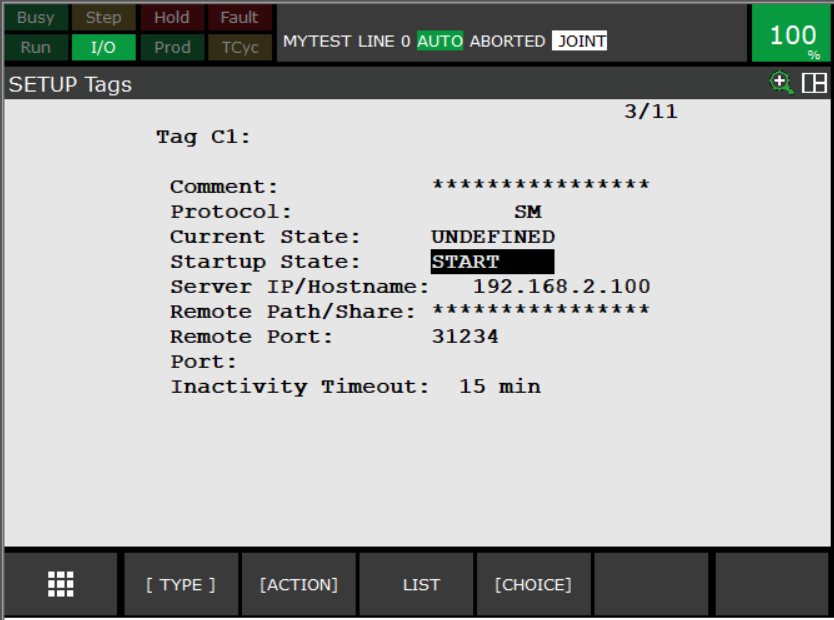
Set Protocol to "SM" (Socket Messaging), Server IP to the IP of our edge device within the machine/robot network, and Remote Port to 31234.
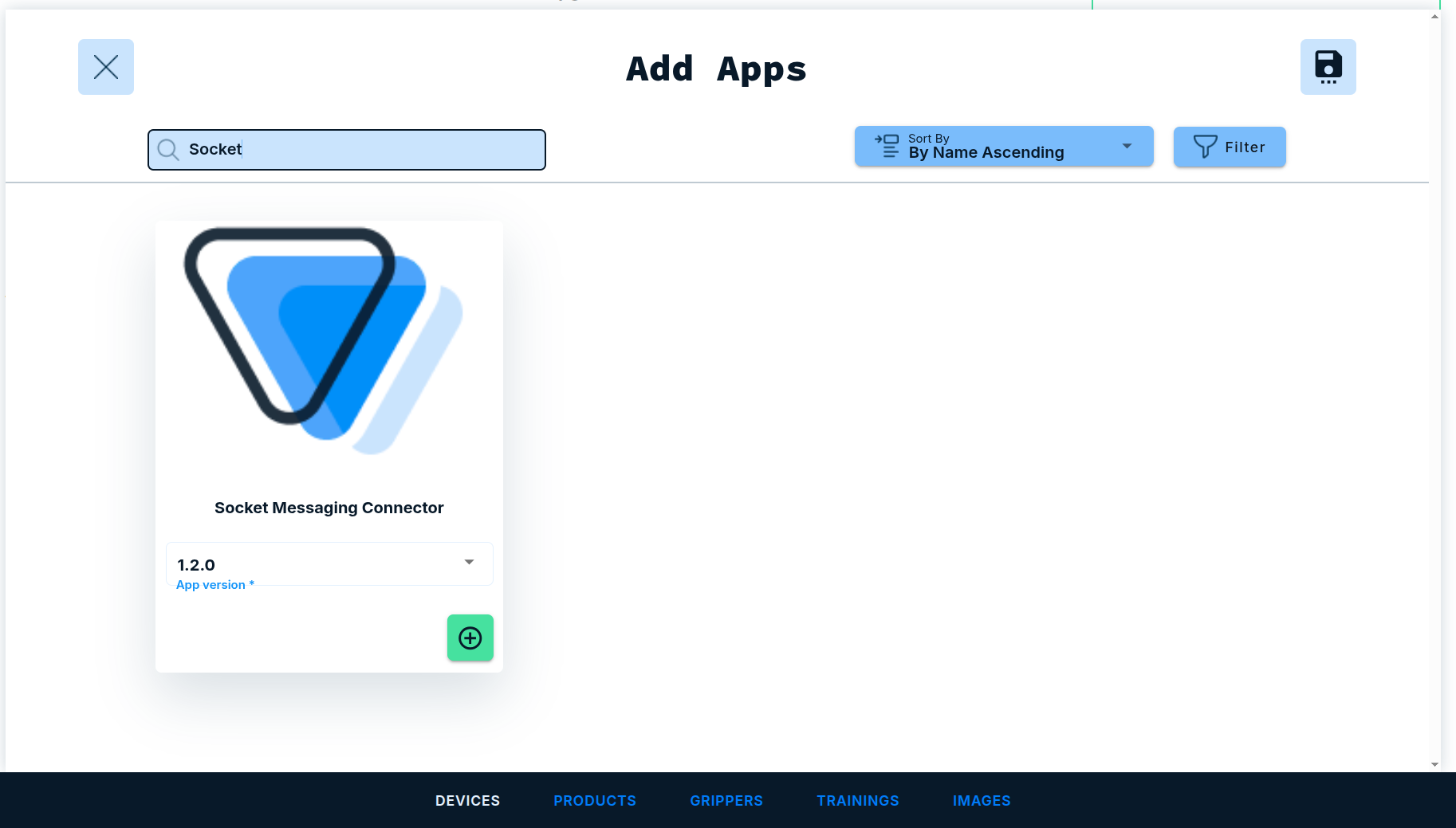
Next log into the frontend at https://www.vathos.vision, navigate to the devices page, and make sure the Socket Messaging Connector app is installed on the edge device designated for communication with this robot:
Navigate to our Github page and download the release whose version number matches the one of the app you just installed. Unpack the downloaded zip file. The folder /api contains source code written in KAREL which needs to be compiled as follows: During the installation of FANUC’s ROBOGUIDE, an executable ktrans.exe is typically put into C:\Program Files (x86)\FANUC\WinOLPC\bin. Each of the downloaded source code files can be compiled by opening a command prompt and calling:
ktrans.exe source_file.kl
The output will be a binary file of the same name but with file extension .pc. Compile all source files downloaded from Github and copy the output to the robot controller. The files implement a set of API functions needed for a majority of pick & place applications that can be executed on any FANUC controller.